Engineering first. Curiosity always.Copenhagen / Open to opportunities
Back to selected work

Engineering & Innovation01 / 08

DTU · DALSA / 2026

Mixed Reality
Laboratory Training.

What if instructions could live beside the equipment they explain?

I designed and built a mixed reality prototype that connects modular preparation steps with guidance in the physical laboratory.

Jump to the findings
Year
2026 · June–September
Diploma engineering project
My role
Research · Interaction design
Unity development & evaluation
Tools & methods
Unity · Meta Quest 3
Blender · OpenCV / ArUco
Context
DTU Arena for Life Science
Automation (DALSA)
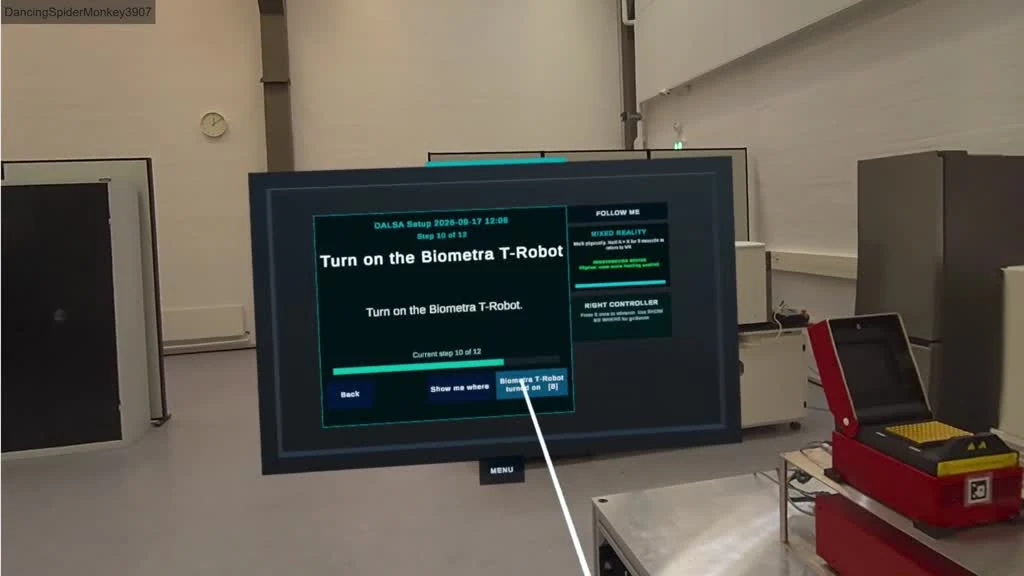
A floating training tablet shows the current laboratory preparation step, spatial-guidance controls and a controller ray
Digital instructions, in a physical context. Prototype footage · Meta Quest 3 passthrough

01 / The problem

Automation still
needs people.

Automated laboratory workflows still depend on manual preparation: placing materials, checking consumables and knowing what goes where.

At DALSA, the combination of equipment and preparation tasks can change between experiments. People unfamiliar with a particular setup need to understand both the sequence and the physical location of each task.

The project explored whether mixed reality could bring that information into the working environment, alongside specialist support. The aim was a working concept and an initial usability evaluation.

02 / Research & requirements

Understand the work
before designing
the interface.

I visited the laboratory at least weekly during the approximately 12-week project, worked through existing equipment procedures and discussed needs with laboratory staff.

Input came from an intelligent systems specialist, a laboratory technician, an automation specialist and a laboratory manager. These were informal contextual discussions, supported by observations and development notes.

The intended users were people unfamiliar with a specific workflow, setup or piece of equipment — including experienced laboratory staff encountering something new.

This was contextual exploration, not a formal interview study with coded qualitative analysis.

What I observed What the design needed

Preparation happens around real equipment.

Keep the physical lab visible and connect guidance to the task location.

Equipment combinations can change.

Separate reusable preparation content from interface logic.

Users move and look around while working.

Offer a floating tablet with Follow, Pin and local repositioning.

Hands may be occupied with materials.

Explore hands-free confirmation, then check its reliability on the headset.

These observations informed 15 requirements covering passthrough, equipment combinations, alignment, readable instructions, spatial guidance, input methods and the guidance-only scope.
03 / User journey & interaction

Explain what.
Show where.

The tablet carries the instruction. Arrows and subtle highlights connect it to the physical world.

World-space menus appear in front of the user, while Quest 3 passthrough keeps the real equipment visible. The interface is designed around a repeatable read → locate → act → confirm loop.

  1. 01

    Get oriented

    Main menu and an optional introduction to the controls.

  2. 02

    Configure

    Select equipment to compose predefined preparation steps.

  3. 03

    Align

    Position the setup using a marker or manual Ghost Alignment.

  4. 04

    Follow guidance

    Read the active step and use SHOW ME WHERE to locate the task.

  5. 05

    Confirm & continue

    Perform the action, then confirm with the right controller’s B button.

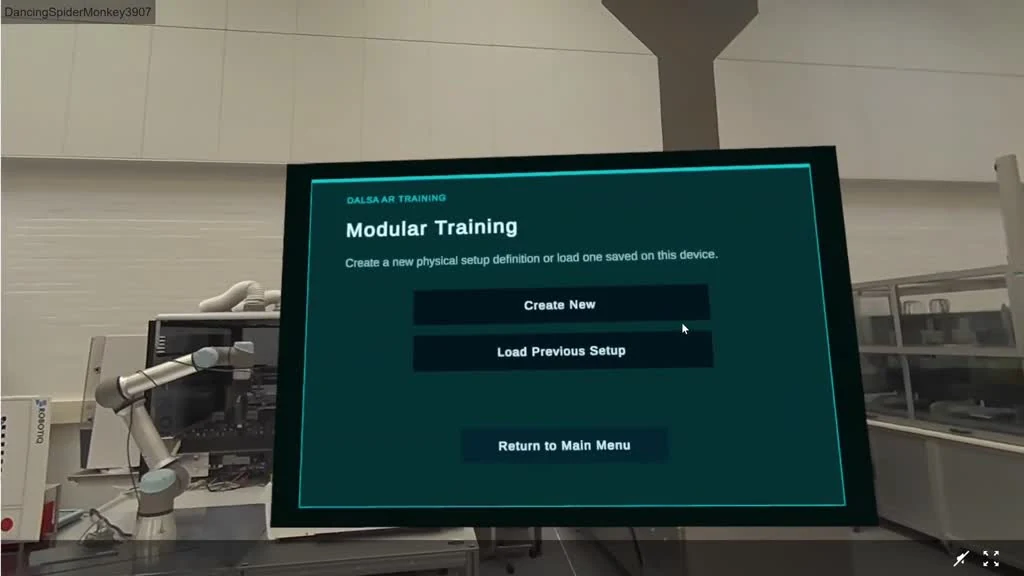
The Modular Training menu in the laboratory, with Create New and Load Previous Setup options
01 / Modular setup — selected equipment determines the steps.
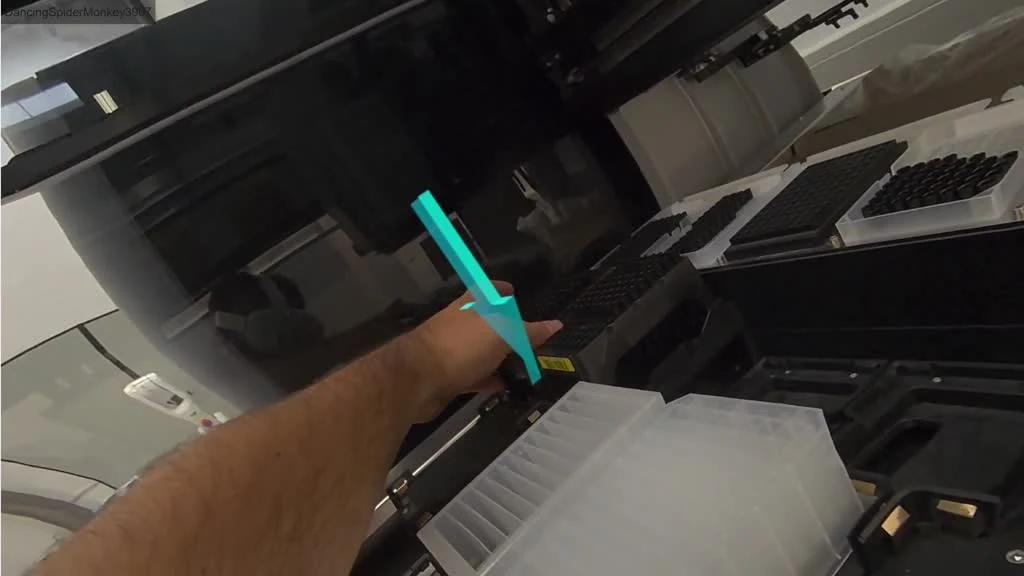
A turquoise virtual arrow points toward a tray inside real laboratory equipment beside the user’s hand
02 / Spatial guidance — bring attention to the task location.

Keep guidance within reach

The virtual training tablet

Follow moves the tablet with the user. Pin keeps it in one place. Controller grabbing allows local repositioning. A voiced tutorial includes practice with these controls, though the final test showed that practice did not establish the intended mental model.

Watch the interface tutorial

Align the digital and physical

Two routes to the same setup

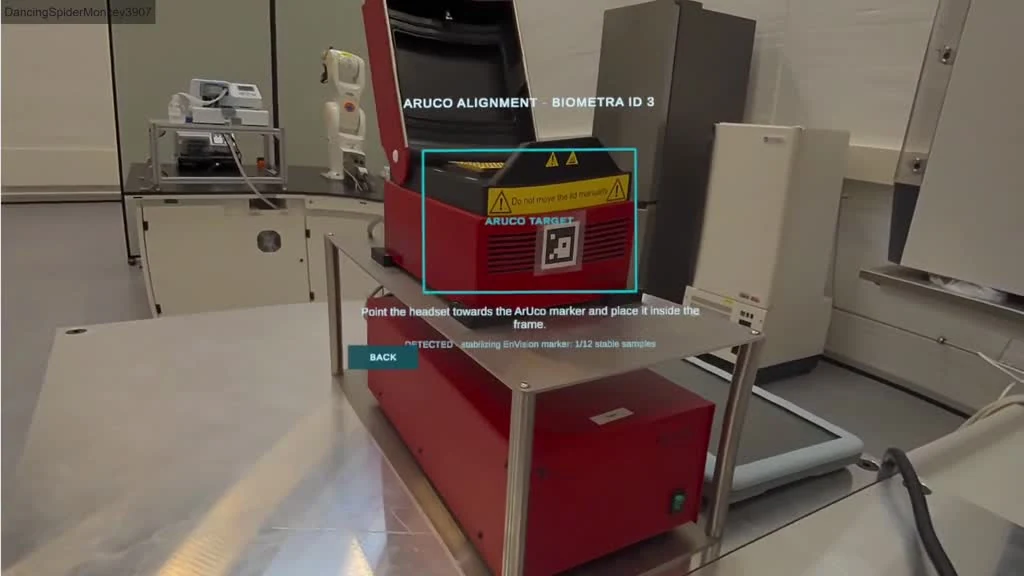
ArUco markers provide a physical reference for spatial alignment. Ghost Alignment lets the user manually move, rotate and confirm the setup as a fallback. Both move a shared root, preserving the relationship between models and guidance targets.

Software & tablet tutorial

Learn the
interface.

I created this tutorial for my bachelor’s project to introduce the application and explain how to use the virtual training tablet and its controls.

Watch the tutorial on YouTube

The embedded tutorial loads from YouTube only when selected. The direct YouTube link is always available.

04 / Prototype development

Build for change.
Test in context.

I built the prototype in Unity for Meta Quest 3, using passthrough, world-space UI, simplified 3D equipment and target anchors.

JSON workflow content is imported into setup data. A checklist manager maintains the active step and updates both the tablet and spatial guidance. Keeping content, state and presentation separate makes the same interface reusable across equipment selections.

The prototype represents four pieces of equipment: a Hamilton Microlab STAR, a Universal Robots cobot, a Biometra T-Robot thermocycler and a PerkinElmer EnVision plate reader.

Content JSON preparation steps Equipment & instructions
State Active checklist step One source of progress
Presentation Tablet & spatial targets What to do & where

Reliable input came first.

I explored hand tracking and a two-thumbs-up confirmation gesture. Physical headset tests showed unreliable interaction, so the final evaluation used Quest Touch Plus controllers: ray and trigger for selection, right trigger for tablet movement and B for step confirmation.

Hands-free interaction remains a useful direction, but it was not achieved reliably in the final tested build.

Purpose-built models kept the prototype manageable.

I created simplified equipment models in Blender alongside an existing cobot model. An exploratory 3D scan remained much more geometrically complex, so simplified modelling gave better control over scale, geometry and guidance targets.

Technical checks and user understanding were separate.

Source/build checks, Unity workflow checks and physical Quest testing answered different questions. A working function in the editor did not establish reliable headset behaviour or an understandable interaction.

An ArUco Alignment overlay frames a printed reference marker on laboratory equipment
03 / Marker-based alignment of the shared setup.
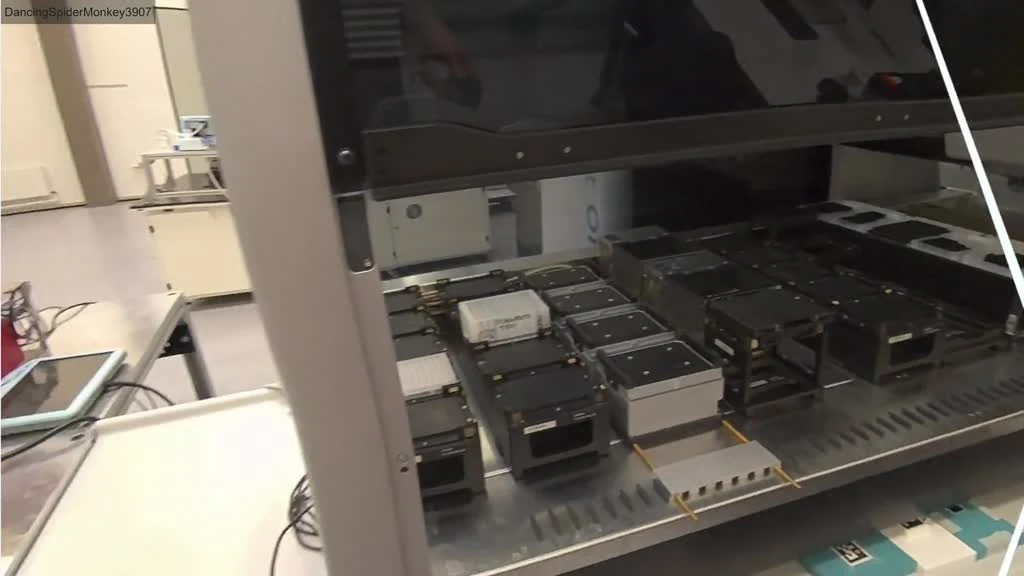
Passthrough view of a laboratory instrument’s open deck and trays, with a controller ray visible
04 / The physical equipment stays visible during interaction.

05 / Iteration after the pilot

Small changes.
Clearer cues.

The separate formative pilot involved one participant. Instructions were easier to follow than manual setup placement, and equipment references needed to be clearer.

The pilot informed targeted clarity and stability changes before the final evaluation. The underlying workflow and alignment approach stayed within the project’s existing scope.

  • More specific language. Replaced generic robot references with configured equipment names.
  • More legible targets. Added subtle, low-opacity clear-area highlights.
  • A cleaner tutorial. Corrected a missing SHOW ME WHERE arrow and repositioned the ending panel.
  • Less visual noise. Removed obsolete helpers, a floating tutorial menu button and an unwanted completion effect.

The pilot’s SUS score was 70/100. Pilot and final scores came from different single participants; they do not demonstrate a measured usability improvement.

06 / Final evaluation

A working flow.
An important usability gap.

One experienced automation specialist completed the final application flow. The session offered useful individual observations and a clear direction for improvement.

85/100

System Usability Scale

A positive usability rating from the one valid final participant.

1

Valid completed session

One interrupted final attempt was excluded from the analysis.

0

Blocking technical crashes

Recorded during the completed application flow in that session.

What worked in the observed session

The participant completed the introduction, ArUco alignment, equipment identification, spatial guidance and modular training flow. Feedback highlighted the guidance arrows positively, with a request for better positioning.

VRSQ remained 6.7 before and after the session: no recorded symptom increase for this participant.

The main finding

A control can work without making sense to the user.

Despite the tutorial, the participant repeatedly carried or dragged the tablet manually instead of adopting Follow and Pin. The intended movement model had not transferred into the practical task.

What this evaluation does — and doesn’t — establish

  • Sample size. One experienced specialist does not represent the wider range of people unfamiliar with a laboratory setup.
  • Effectiveness. No demonstrated improvement in onboarding efficiency, task accuracy or error reduction.
  • Alignment. One rough practical check found approximately 6.7 cm offset in the measured plane. This was not a controlled 3D accuracy study.
  • Verification. Save/load and persistent relocalization were not verified. The completed flow does not independently verify that every physical action was correct.

See it in context

The prototype,
in motion.

Pilot-test demonstration of the modular training experience. The footage illustrates the interface; it is separate from the final evaluation results above.

Watch on YouTube

The embedded player loads from YouTube only when selected. The direct YouTube link is always available.

07 / Lessons & next steps

The next iteration
starts with understanding.

The biggest lesson was the gap between a technically available interaction and a learned behaviour.

That lesson shaped three priorities for future development. These are proposed improvements, not features already implemented or tested.

  1. Make tablet modes explicit.

    Clarify Follow/Pin state, practise it in a realistic task and simplify long-distance repositioning. Then test whether users carry that understanding into training.

  2. Start with the workflow.

    The current equipment-first setup assumes users know which machines they need. A workflow-first approach could derive the equipment, materials and preparation steps.

  3. Broaden the evidence.

    Test with more people across the intended user group, repeat alignment checks under controlled conditions and verify save/load and spatial relocalization.

For me, the project brought research, visual communication and engineering into one process: understand the situation, build something tangible, and use what happens in practice to guide the next decision.

Case study based on my DTU report, Design of a Digital Twin-based XR System for Laboratory Onboarding, June–September 2026. Relevant report sections: Methodology & Requirements (pp. 13–18), System Design & Implementation (pp. 19–27), Evaluation (pp. 28–34), Discussion & Conclusion (pp. 35–41). Digital Twin describes the project direction; the implemented prototype has no automatic machine-data exchange.

Keep exploring / Healthcare & UX

Patient Information Redesign

Let’s talk about your next project ↗
Enlarged project image